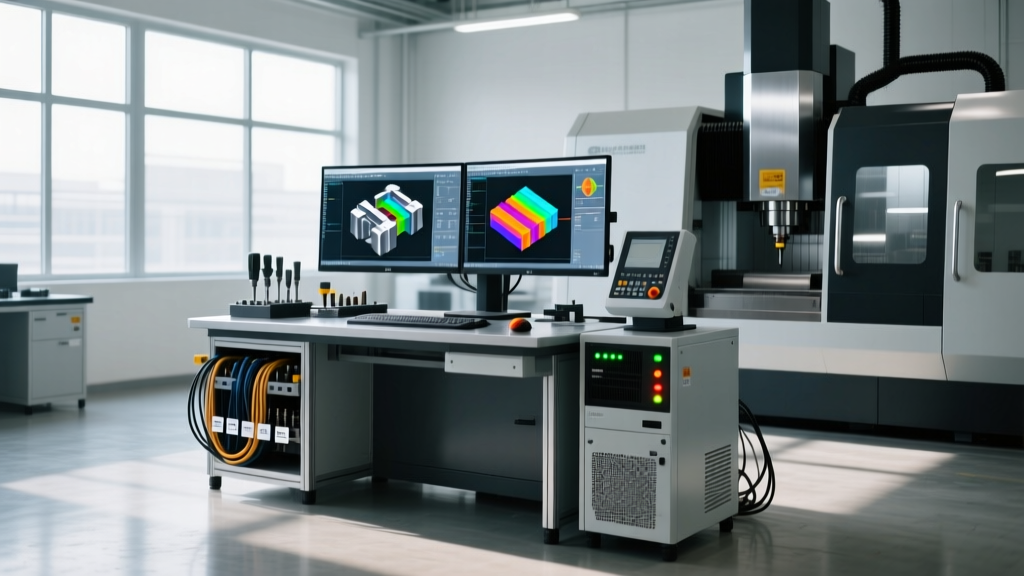
CNC Machine CAD Workstation Maintenance & Service Schedules
Optimize your CNC machine CAD environment with precise hardware and software maintenance schedules. Prevent toolpath crashes and license failures.
The Hidden Cost of CNC Machine CAD Downtime
A crashed CNC machine CAD workstation does not just delay a single design; it halts the entire manufacturing pipeline. When a 5-axis simultaneous toolpath calculation fails at 98% completion due to thermal throttling, or a Product Data Management (PDM) vault locks up during a checkout, the shop floor sits idle. In 2026, with average CNC machining rates exceeding $150 per hour, a four-hour CAD workstation outage can cost a mid-sized machine shop over $2,000 in lost spindle time and missed delivery penalties.
Maintaining the ecosystem that supports your CNC machine CAD software requires a rigid, documented service schedule. This goes far beyond basic IT ticketing. It involves proactive hardware thermal management, database index optimization, and strict post-processor synchronization.
⚠️ Critical Warning: ECC RAM DegradationDo not ignore uncorrected memory errors in your CAD workstations. While Error-Correcting Code (ECC) RAM prevents immediate system crashes during complex Boolean operations in SolidWorks or Inventor, accumulating correctable errors indicate failing DIMMs. Monitor Windows Event Viewer (Event ID 4120) weekly. Replace DIMMs showing more than 10 correctable errors in a 30-day window to prevent silent data corruption in your CNC part files.
Hardware Maintenance Matrix for CAD Workstations
Modern CNC machine CAD assemblies—especially those involving large weldments or multi-body 5-axis fixtures—demand immense GPU VRAM and CPU multi-threading. Workstations equipped with NVIDIA RTX Ada Generation GPUs (such as the RTX A4000 or RTX 6000) require specific physical maintenance to sustain boost clocks during prolonged rendering and toolpath verification.
| Interval | Component | Maintenance Action | Target Metric / Specification |
|---|---|---|---|
| Weekly | GPU & CPU Thermals | Log idle and load temperatures via HWMonitor. | GPU Load Temp < 82°C; CPU Package < 90°C. |
| Monthly | VRAM & System RAM | Run MemTest86 or NVIDIA MODS diagnostic suite. | Zero uncorrected errors; VRAM allocation stable. |
| Quarterly | Cooling System | Purge dust from GPU heatsinks and PSU intake. | Use compressed air at max 90 PSI; maintain 2-inch clearance. |
| Bi-Annually | Storage (NVMe SSD) | Check SSD health and TRIM execution. | NVMe wear level < 15%; minimum 20% free space for scratch disks. |
| Annual | Thermal Interface | Repaste CPU and inspect GPU thermal pads. | Use high-viscosity paste (e.g., Thermal Grizzly Kryonaut). |
The VRAM Bottleneck in 5-Axis Toolpath Generation
When generating toolpaths for complex 5-axis aerospace components, the CAM software relies heavily on the CAD kernel's graphical representation. If your assembly exceeds the GPU's VRAM (e.g., a 12GB limit on an RTX A4000), the system pages memory to the system RAM, causing a 400% slowdown in toolpath calculation times. Upgrading to a 48GB RTX 6000 Ada is not just a luxury; it is a mathematical necessity for shops running high-density mesh simulations.
Software, PDM, and Post-Processor Service Intervals
Hardware is only half the equation. The software stack connecting your CNC machine CAD models to the shop floor G-code requires rigorous version control and database maintenance.
1. PDM Vault SQL Server Maintenance (Monthly)
If you use SolidWorks PDM or Autodesk Vault, the underlying Microsoft SQL Server database fragments over time as engineers check files in and out. When index fragmentation exceeds 30%, file search times and BOM generation slow to a crawl.
- Action: Schedule a SQL Server Agent job to run on the first Sunday of every month.
- Command: Execute
ALTER INDEX ALL ON [YourVaultDB] REBUILDfor fragmentation > 30%, andREORGANIZEfor fragmentation between 10% and 30%. - Backup: Perform a full vault database backup and a separate archive of the physical file vault directory before executing maintenance scripts.
2. Post-Processor Synchronization (Bi-Annual)
A common failure mode in CNC programming occurs when the CAD/CAM software is updated, but the machine-specific post-processors (.MD or .PST files) are not re-verified. A minor update to the CAD kernel's arc-output logic can result in G2/G3 commands that the CNC control (e.g., Haas NGC or Fanuc 31i) misinterprets, leading to gouged parts.
'Never push a major CAD/CAM software update to the production floor without running a standardized 5-axis test part through the updated post-processor and verifying the G-code via a third-party simulator like Vericut or NCSIMUL.' — Advanced Manufacturing Best Practices Guide
3. FlexNet License Server Audits (Quarterly)
Network licenses for enterprise CNC machine CAD suites rely on FlexNet Publisher. The license server daemon (lmgrd) can silently fail or hang if the server's OS undergoes unmanaged updates or if port conflicts arise.
- Verify that TCP ports 27000-27009 are strictly whitelisted in the Windows Defender Firewall and any edge routers.
- Review the
lmgrd.logfile for 'DENIED' or 'TIMEOUT' errors, which indicate network latency between the CAD workstations and the license server. - Restart the license service monthly during off-hours to clear orphaned license handles from crashed CAD sessions.
Troubleshooting Common CAD-to-CNC Pipeline Failures
When maintenance schedules are missed, specific symptoms manifest in the CAD/CAM environment. Use this decision tree to diagnose and resolve pipeline failures.
Symptom: 'Ghost' Toolpaths or Incomplete Geometry Selection
Cause: Corrupted local cache or out-of-sync PDM metadata. The CAD software is reading an older, cached version of the part file while the CAM software attempts to calculate toolpaths on the updated geometry.
Fix: Force a 'Get Latest' with the 'Recalculate Cache' option enabled in your PDM client. Delete the local SWBackup or Autodesk Cache directories manually if the UI fails to refresh the geometry tree.
Symptom: System Hangs During STL Mesh Export for 3D Printing or Verification
Cause: Insufficient virtual memory (pagefile) allocation combined with high-polygon count assemblies. The CAD kernel exhausts physical RAM and fails to write to a restricted pagefile.
Fix: Move the Windows Pagefile to a dedicated, high-speed NVMe scratch drive (separate from the OS drive). Set the pagefile to 'System Managed' or manually allocate 1.5x your physical RAM (e.g., 96GB pagefile for a 64GB RAM workstation).
Establishing Your 2026 Service Baseline
Transitioning from reactive IT support to proactive CNC machine CAD maintenance requires assigning ownership. The lead CNC programmer or manufacturing engineer—not the general IT department—must own the post-processor and CAD kernel update schedules. IT should handle the physical hardware thermals and SQL database indexing.
By implementing these strict hardware matrices, PDM database optimizations, and license server audits, machine shops can eliminate the hidden downtime that bleeds profitability. Refer to the official Autodesk knowledge base and your specific CAD vendor's system requirements documentation to tailor these intervals to your exact software stack and shop volume.